Your login email identifies your Payreq user. Subscription email addresses control where particular organisations send documents or notifications. You may need to update both.
- Sign in at go.payreq.com.
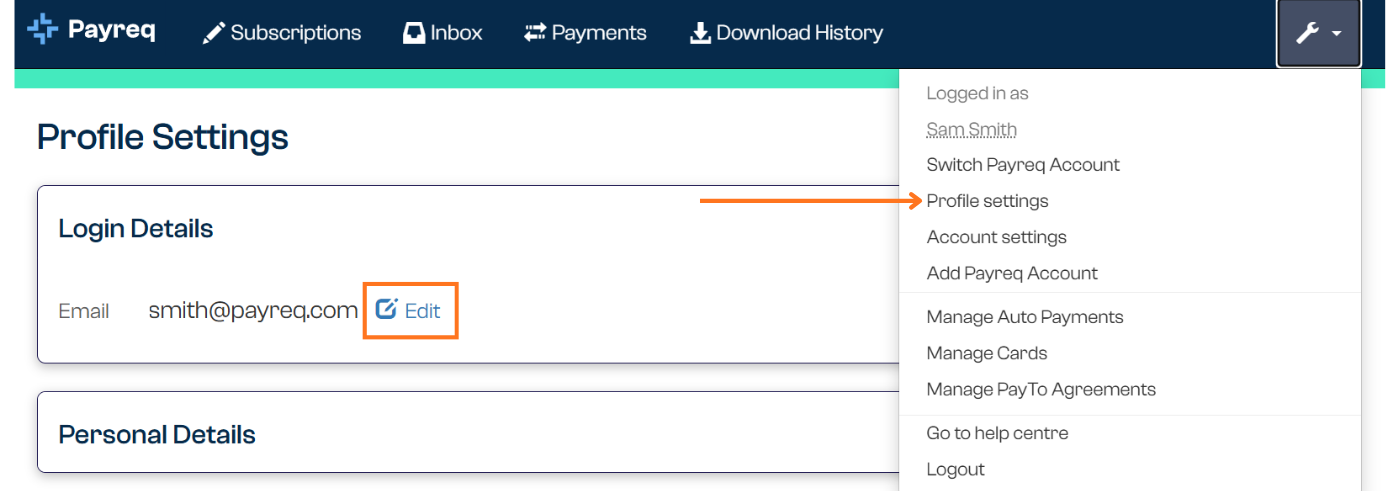
- Open Profile settings from the user menu.
- In Login Details, select Edit.
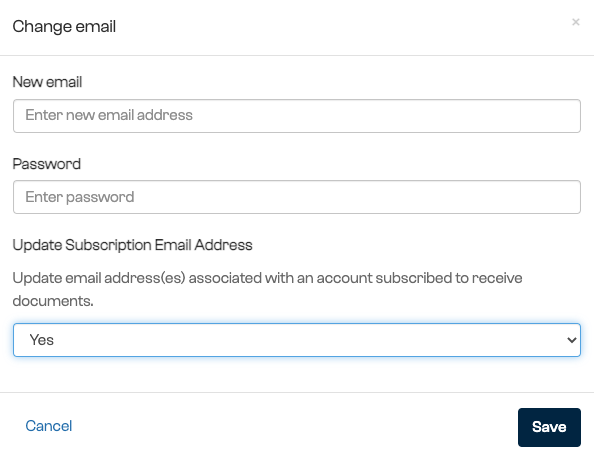
- Enter the new email address and your current password.
- For Update Subscription Email Address, select Yes if the email addresses associated with your subscriptions should also change. Select No if those delivery addresses must stay as they are.
- Select Save.
- Open the confirmation email sent to the new address and select Confirm Email Update.
- Sign in using the new email address.
Until you confirm the change, both the old and new addresses may work for sign-in. Subscription delivery continues to use the old address unless you selected Yes for Update Subscription Email Address. Review important subscriptions after the update, particularly if different documents need to go to different people.
If you no longer have access to the old address or cannot sign in, use password recovery or contact Payreq Support.
Was this article helpful?
That’s Great!
Thank you for your feedback
Sorry! We couldn't be helpful
Thank you for your feedback
Feedback sent
We appreciate your effort and will try to fix the article