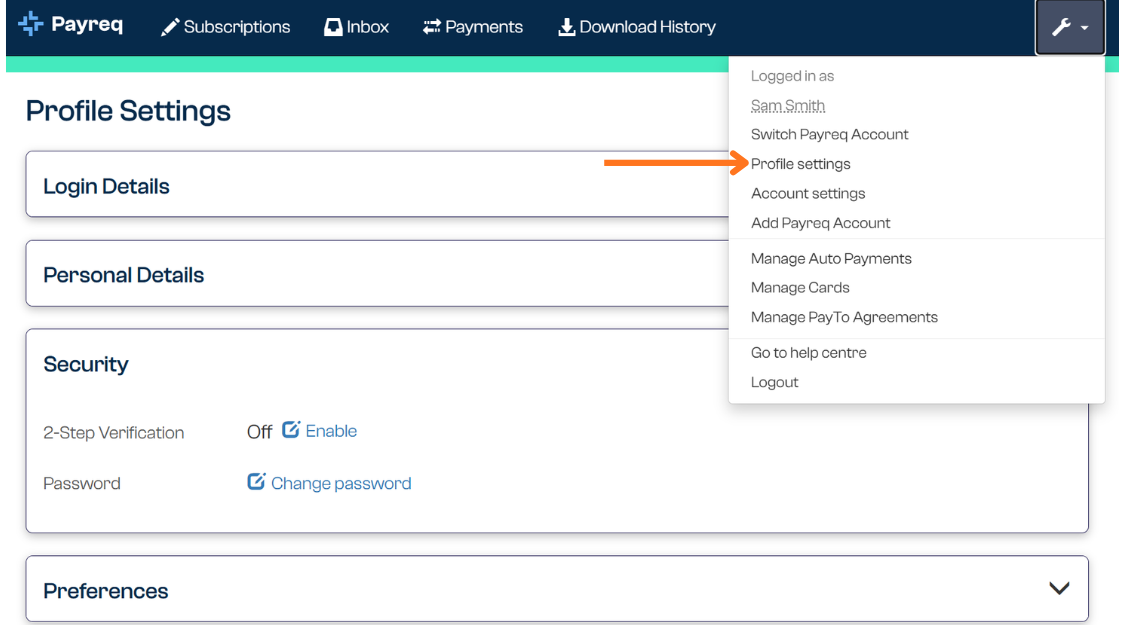
Payreq calls multi-factor authentication 2-Step Verification in Profile settings. A code emailed to verify a trusted device is a separate security check.
Check your sign-in details
- Use the email address attached to your Payreq login, not necessarily an address used only for document delivery.
- Check for typing errors and make sure your browser has not filled an old password.
- If you have forgotten the password, use Forgot your password? to reset it.
If the authenticator code does not work
- Open the authenticator app linked to your Payreq login and use its current code.
- Make sure the date and time on the device are set automatically.
- Wait for the next code if the current one is about to expire.
- Do not repeatedly submit codes if the screen reports a temporary lock.
If Payreq emails a trusted-device verification code, check your junk or spam folder and use the code within 60 minutes.
Try a clean browser session
Use a current supported browser, close duplicate Payreq tabs and try again in a private browsing window. If Payreq locks the login after too many invalid attempts, wait 30 minutes before trying again.
Contact Payreq Support if you no longer have access to the authenticator app or cannot recover the account. Support will tell you what information is needed before access can be changed. Never send your password or a live verification code.
Was this article helpful?
That’s Great!
Thank you for your feedback
Sorry! We couldn't be helpful
Thank you for your feedback
Feedback sent
We appreciate your effort and will try to fix the article