A Payreq Mailbox can allow more than one user to access it. The available controls depend on your own permissions. Give each person only the access they need and remove access promptly when their role changes.
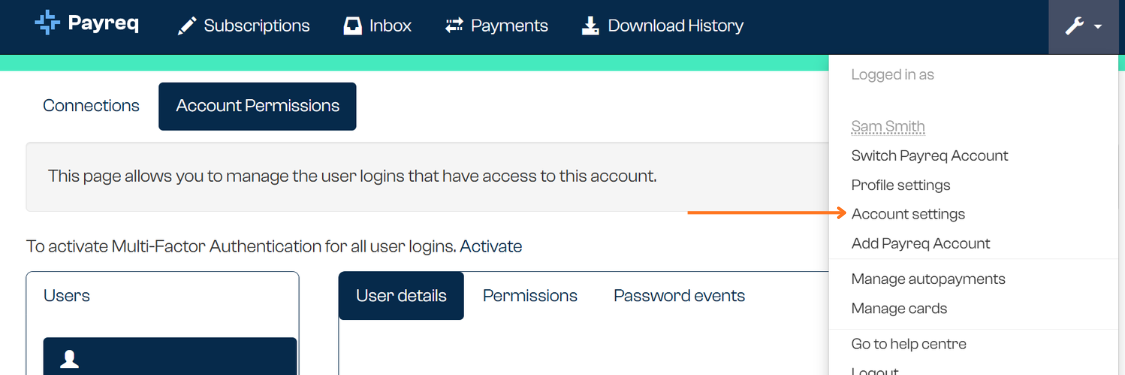
Invite a user
Sign in and select the relevant Payreq account.
Open Account settings.
Open Account Permissions.
In Users, select Invite new user.
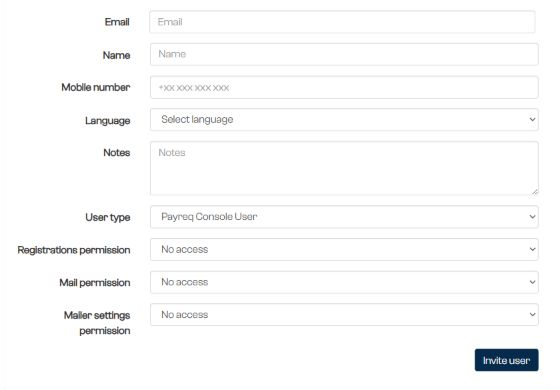
Enter the person's email address, name and any other required details.
For a person who will sign in through the Payreq website, select Payreq Console User. Use Payreq API User only when Payreq has told you to create an API login for a specific integration.
Assign the required permissions:
- Incoming Registrations Manager for registrations;
- Incoming Mail Manager for received mail; and
- Incoming Settings Administrator for Inbox settings.
Select No access for an area the person does not need.
Select Invite user.
The new user receives an email asking them to set up access. Review their permissions after they accept.
Remove a user
- Return to Account Permissions and select the user.
- Open Permissions.
- Select Revoke access and confirm the change.
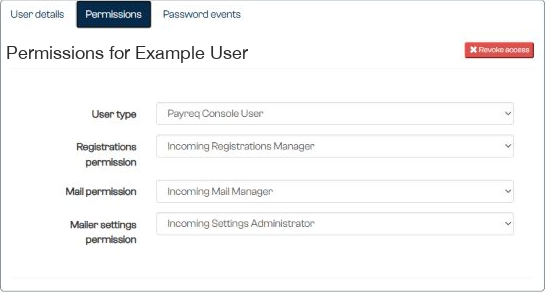
Revoking access removes that user's access to the selected Payreq account. It does not delete their separate Payreq login or access to other accounts.
If Account Permissions, Invite new user or Revoke access is not available, ask an administrator of that Mailbox to make the change.
Was this article helpful?
That’s Great!
Thank you for your feedback
Sorry! We couldn't be helpful
Thank you for your feedback
Feedback sent
We appreciate your effort and will try to fix the article