If you have paid a bill outside Payreq, it may still appear as Payment due in your Payreq Mailbox. The payment status updates automatically only when you pay using Pay Now or Auto Payment.
For bills delivered to your Mailbox, you can use Mark as paid to update the status yourself. This also stops Payreq's three-day payment reminder for that bill and prevents an automatic payment for it from being processed.
TABLE OF CONTENTS
- What the payment status tells you
- Mark a bill as paid
- Payment reminders after you have paid
- If you have an automatic payment
- Check whether a payment was received
What the payment status tells you
When you pay through Payreq, the result is recorded in Payreq. If you pay another way, such as BPAY, bank transfer or the organisation's website, that payment is not recorded here, so the bill may continue to show as due. You can update its status with Mark as paid, or through a paid-status update arranged with the issuing organisation.
Marking a bill as paid changes the record in Payreq. It does not make a payment or tell the organisation that you have paid. A payment you have already made counts towards your account whether you mark the bill as paid or not.
The bill's download status is separate. Awaiting Download, for example, refers to downloading the document, not whether you have paid it.
Mark a bill as paid
Use this when you have paid the bill outside Payreq and would like your Mailbox to show that.
- Sign in at go.payreq.com.
- Open the Inbox.
- Find the bill and open its details.
- Beside Payment Status, select Mark as paid.
- In the confirmation window, select Mark bill as paid.
- Check that Payment Status now shows Paid.
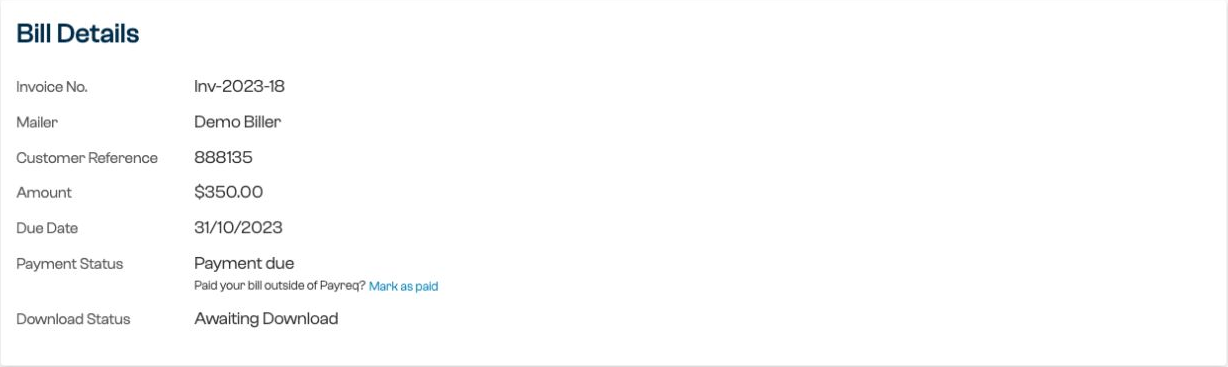
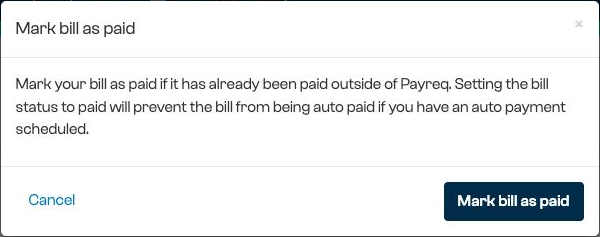
Before marking it as paid, check that you have selected the correct bill. If you have paid only part of the amount, or are unsure how an instalment relates to the bill shown in Payreq, check with the issuing organisation first.
If you cannot see the option, or the status does not update, contact Payreq Support and we will take a look.
Payment reminders after you have paid
Payreq's bill payment reminder is an email sent three days before an eligible bill's due date, when your reminder preference is switched on. If you paid outside Payreq and the bill still shows as due, you may still receive this reminder.
Marking the bill as paid stops the reminder for that bill. If you would rather not receive Payreq's bill payment reminders at all, you can switch off the Bill payment reminder preference in your profile. Managing account notifications has the steps. This preference appears for recipients who have a subscription to an organisation that supports payments through Payreq.
An organisation may also issue its own reminder notice or late-payment notice and deliver it through Payreq. Changing your Payreq reminder preference does not stop the organisation from issuing those documents. If a notice does not reflect a payment you have made, please raise it with the organisation.
Emails about newly delivered documents and warnings about automatic payments are separate from the three-day payment reminder.
If you have an automatic payment
Marking a bill as paid prevents an automatic payment for that bill from being processed. Switching off the Bill payment reminder preference only stops the reminder, not the payment.
You can review scheduled and past payments under Payments. To skip one scheduled payment without marking the bill as paid, follow Viewing and managing your payments.
To change or stop your ongoing auto-payment instruction for later bills, see Updating an auto-payment.
Check whether a payment was received
Payments shows payment activity recorded through Payreq. A payment made elsewhere will not appear there as a Payreq transaction. Marking a bill as paid updates its status, but does not provide a payment receipt.
If you paid through Payreq and the bill still shows as due, check the payment details under Payments. If those details do not match the bill's status, contact Payreq Support and we will take a look.
For confirmation of the amount still owing, how a payment was applied, or whether you have paid twice, contact the organisation that issued the bill. It can check your account and advise you about any refund.
Was this article helpful?
That’s Great!
Thank you for your feedback
Sorry! We couldn't be helpful
Thank you for your feedback
Feedback sent
We appreciate your effort and will try to fix the article