Use the saved-card settings in the Payreq web console to add a card, update its expiry date or remove it.
Add a card
- Sign in at go.payreq.com in a current web browser.
- Open the user menu and select Manage Cards.
- Select Add Card.
- Enter the card number, expiry date, CVV and name on card.
- Select Save.
Update a card's expiry date
- Open Manage Cards and select the card.
- Select Edit Expiry Date.
- Choose the new month and year, then save the change.
Remove a card
- Open Manage Cards and select the card.
- Select Remove Card.
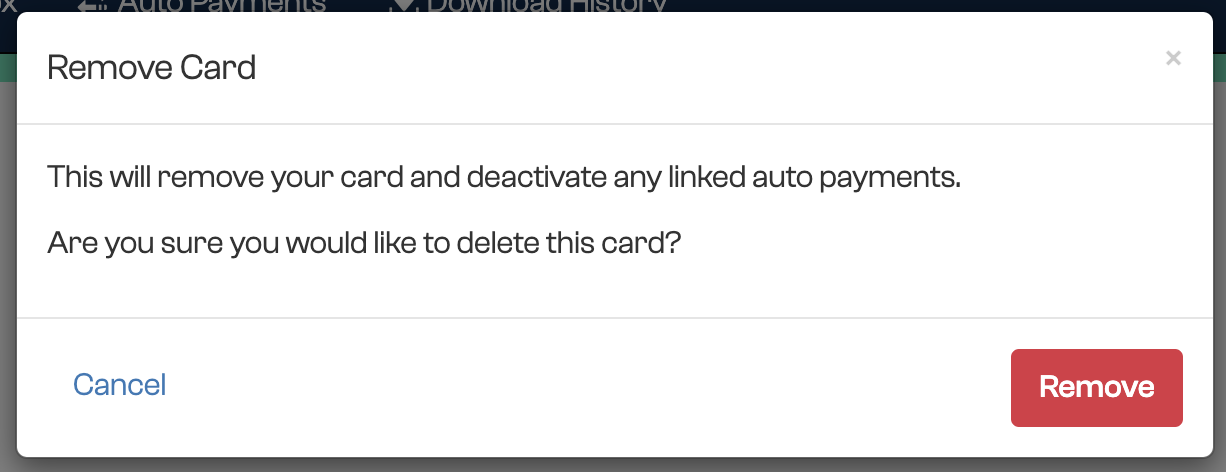
- Read the confirmation message, then confirm the removal.
Removing a card deactivates auto-payments linked to it. The confirmation warns you before the card is removed.
After removing it, open Manage Auto Payments and check the affected accounts. Add another card and create a new instruction where future bills still need to be paid automatically.
Was this article helpful?
That’s Great!
Thank you for your feedback
Sorry! We couldn't be helpful
Thank you for your feedback
Feedback sent
We appreciate your effort and will try to fix the article