The Payments page opens Payment history, which shows payment activity recorded through Payreq, including available historical and scheduled payments.
- Sign in at go.payreq.com.
- Open Payments.
- Find the payment you want to review. You can use Enter an account name to narrow the list.
- Select View to open its details and any available actions.
Paid and failed payment details show the payment status, amount, processing date and payment method. A successful payment also carries a payment reference.
For a scheduled auto-payment, the detail page may offer Edit auto payment and Skip payment. Select Skip payment, then confirm Yes, only when you want to skip that one scheduled payment.
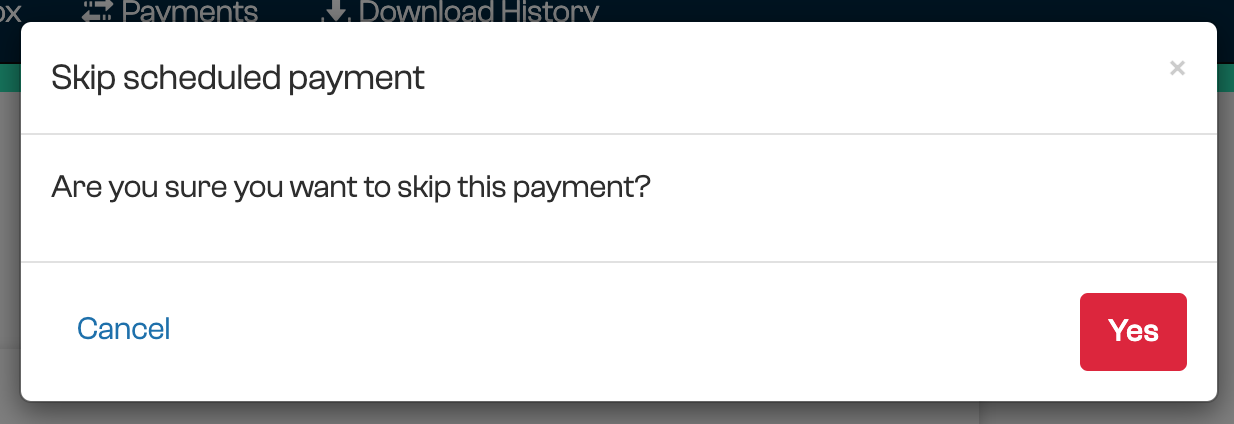
Skipping one scheduled payment does not stop the ongoing instruction. To stop later automatic payments as well, open Manage Auto Payments, select the instruction and use Stop future auto payments.
Use the user menu to manage saved cards and auto-payment instructions.
Payreq shows information about payments initiated through its service. Contact the issuing organisation about the amount due, payment allocation, extensions, refunds or disputes. Contact your card provider about restrictions or transactions controlled by the card account.
Was this article helpful?
That’s Great!
Thank you for your feedback
Sorry! We couldn't be helpful
Thank you for your feedback
Feedback sent
We appreciate your effort and will try to fix the article