One Payreq login can have access to more than one Payreq Mailbox. This can be useful when you keep personal and business documents separate or connect different businesses to different software organisations.
Add another account
- Sign in at go.payreq.com.
- Open the user menu and select Add Payreq Account.
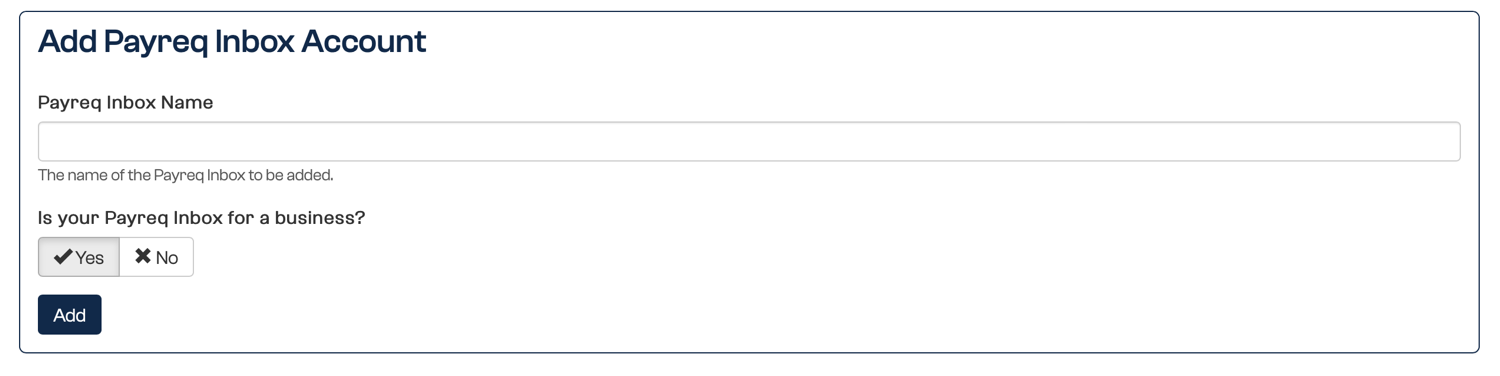
- In Payreq Inbox Name, enter a clear name for the new Mailbox.
- For Is your Payreq Inbox for a business?, select Yes or No.
- Select Add.
Subscriptions, integrations and user permissions are managed separately for each Mailbox.
Switch accounts
- Open the user menu and select Switch Payreq Account.
- On Account selection, search for or select the account you want to use.
- Check the displayed account name before viewing documents or changing settings.
If an expected Mailbox is not listed, ask one of its administrators to confirm your access.
Was this article helpful?
That’s Great!
Thank you for your feedback
Sorry! We couldn't be helpful
Thank you for your feedback
Feedback sent
We appreciate your effort and will try to fix the article