Payreq can forward supported invoices from participating organisations to a connected Xero organisation.
Connect Xero and subscribe
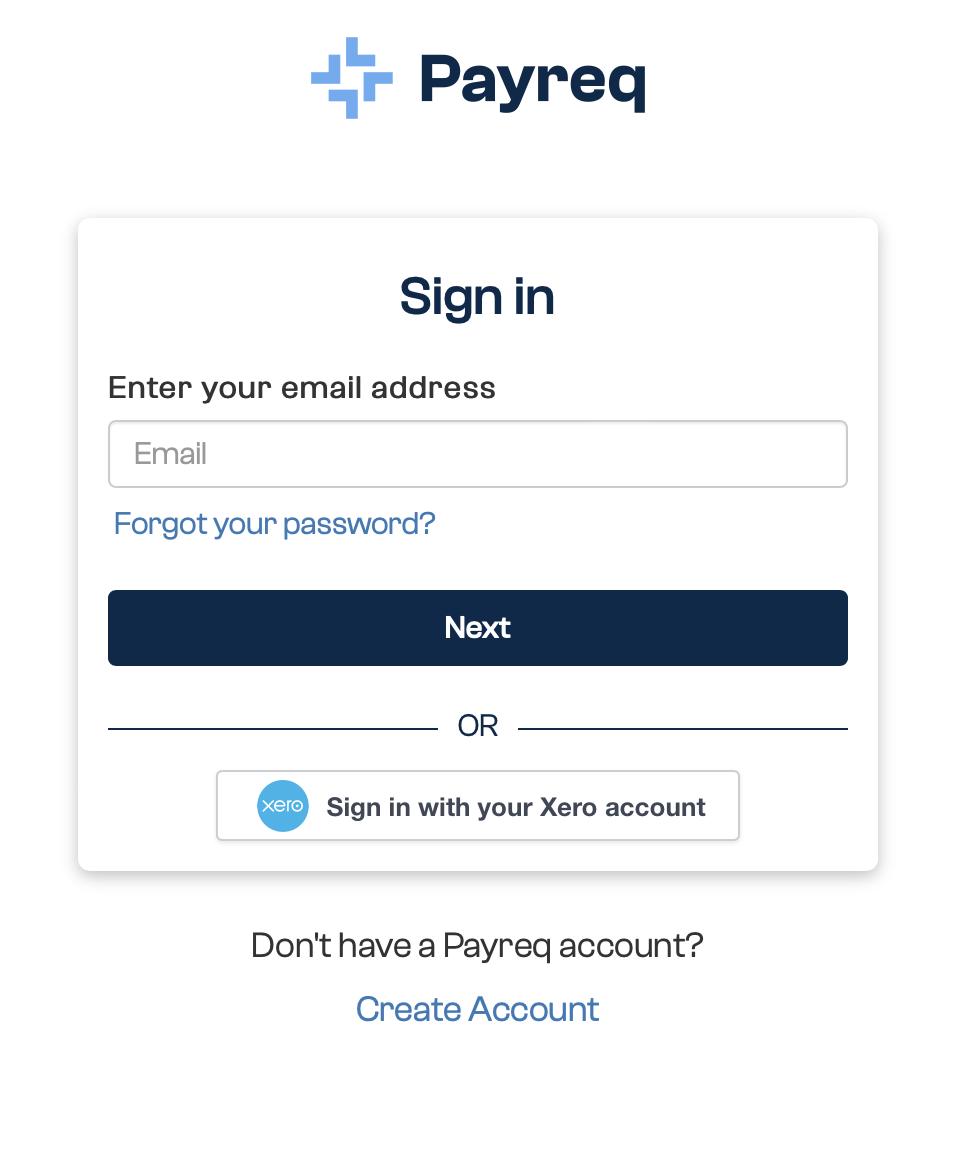
- Sign in to Payreq. You can select Sign in with your Xero account, or sign in to an existing Payreq account. Signing in with Xero creates a Payreq account if you do not already have one.
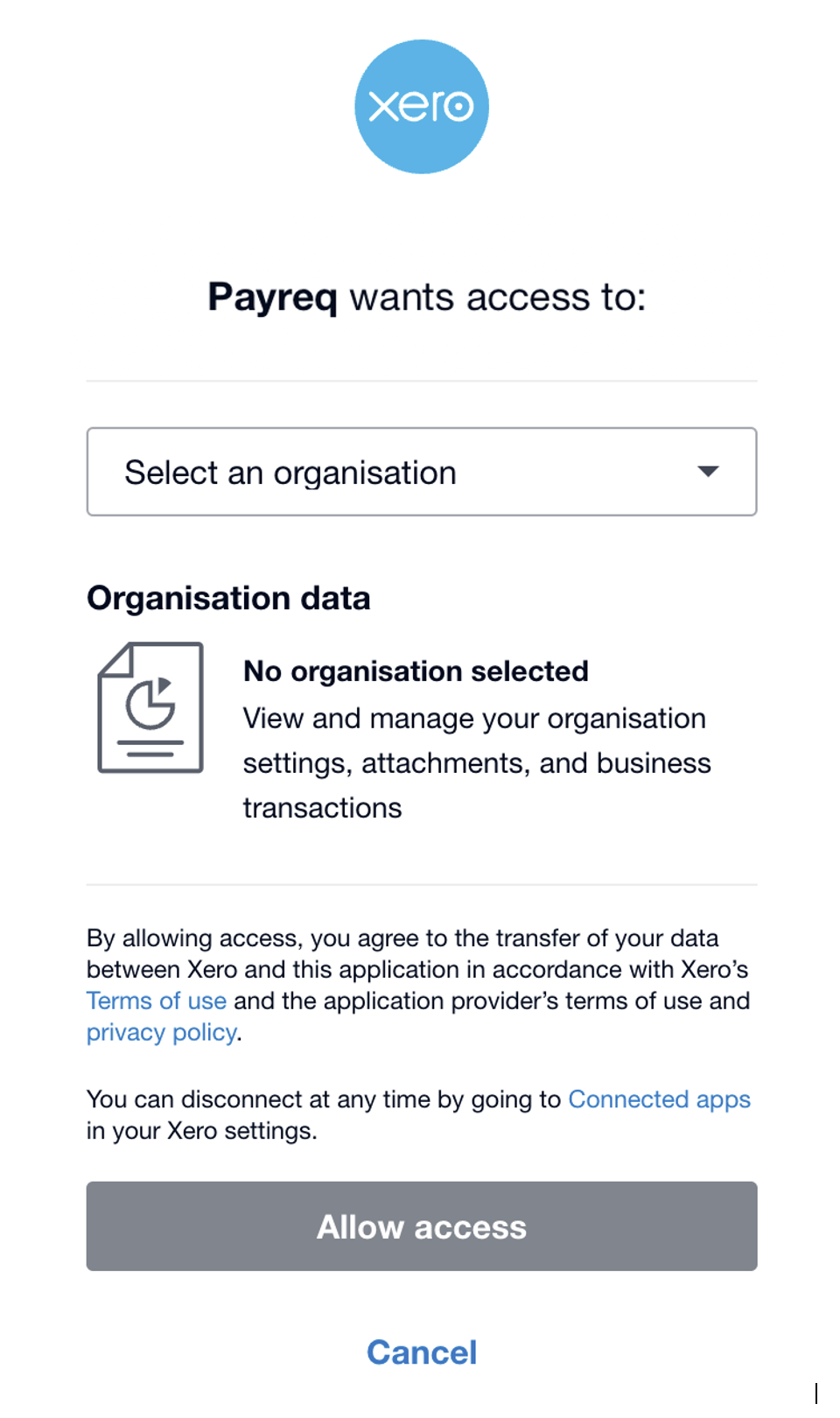
- Sign in to Xero and allow Payreq to access the requested account information.
- In Payreq, select Subscribe, then search for and select the organisation that sends the invoices.
- Select Xero Connect as the delivery method.
- Select Connect to Xero, choose the Xero organisation that will receive the invoices, then select Allow access.
- Enter the verification details exactly as they appear on your current invoice. These fields vary between issuing organisations.
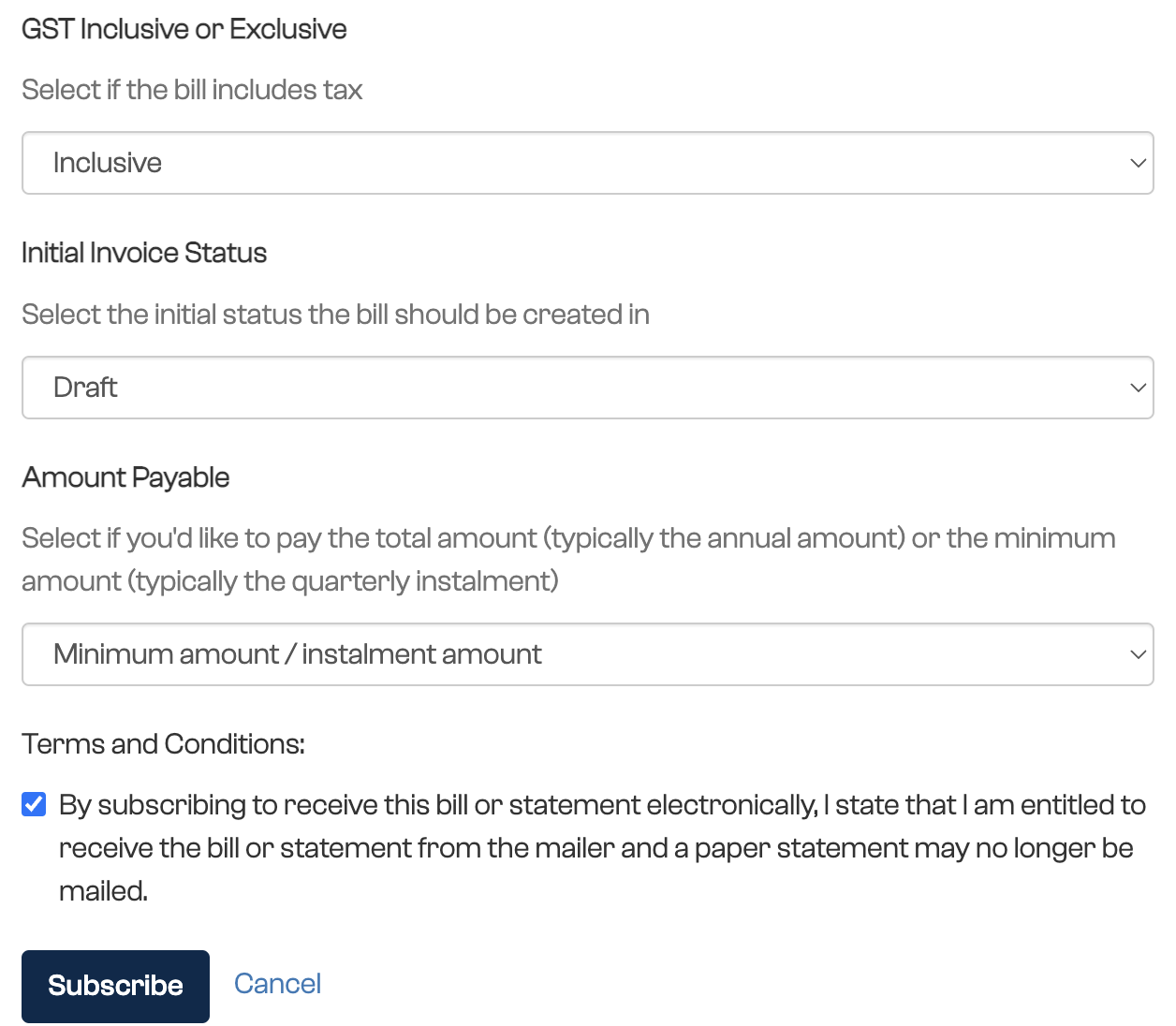
- Choose the forwarding details:
- Xero Organisation;
- Default Invoice Account Code;
- whether the invoice is GST inclusive, exclusive or has no tax;
- the initial invoice status: Draft, Authorised or Submitted; and
- whether the amount payable is the total amount or the minimum or instalment amount.
- Accept the terms and conditions, then select Subscribe.

After you subscribe
The subscription may require approval by the issuing organisation. Once active, new supported invoices are forwarded to Xero purchases using the selected defaults. Review each invoice in Xero before approving or paying it.
Change the forwarding details
Open Subscriptions, select the subscription, then select Edit forwarding details. Update the Xero organisation, account code, GST treatment, initial invoice status or amount payable as required.
Connect another Xero organisation
Each additional Xero organisation needs a separate Payreq Mailbox. From the user menu, select Add Payreq Account, create the additional Mailbox, then connect it to the other Xero organisation.
Disconnect Xero
Open Account settings, then open Connections and select Disconnect from Xero.
Disconnecting Xero deregisters every subscription linked to that connection. Invoices already delivered to Xero are not affected. If you only want to stop one subscription, unsubscribe from that subscription instead. See Troubleshooting the Xero connection for reconnection and disconnection guidance.
Was this article helpful?
That’s Great!
Thank you for your feedback
Sorry! We couldn't be helpful
Thank you for your feedback
Feedback sent
We appreciate your effort and will try to fix the article