Some councils, utilities and other organisations can request your permission to manage the subscriptions for your Mailbox. This authorisation lets that organisation manage the subscriptions for its service on your behalf, so its documents reach your Mailbox. This guide explains what the request is, what changes once you accept it, what you still need to do, and how to view or cancel an authorisation.
An authorisation covers only the organisation that requested it. It does not affect your subscriptions with any other organisation.
Accepting an authorisation request
The organisation sends an Authorisation Request email to the address you use for your Payreq Mailbox.
- Open the email and follow the confirmation link.
- Verify your security details.
- From the MyBills Account list, select the Mailbox you want to authorise.
- Select Authorise.
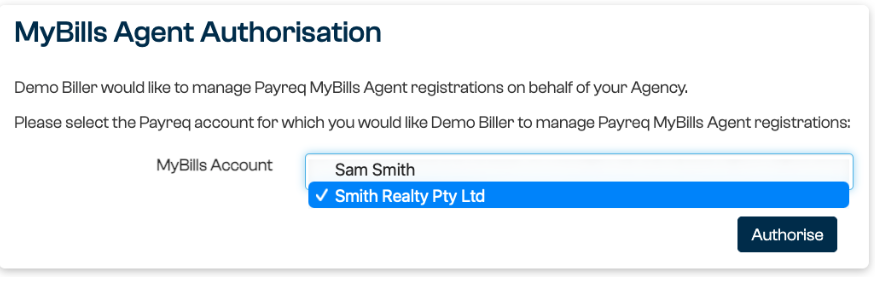
If you have access to more than one Mailbox, check you have selected the right one before you confirm. The authorisation applies to the Mailbox you choose.
An organisation can only send a request to an email address that already belongs to an active Payreq Mailbox. If they tell you they could not find you, make sure you have created your Mailbox and have given them the email address you use to sign in. See Getting started with Payreq Group.
What changes once you accept
This depends on how the organisation has set up its Payreq service. It will be one of two arrangements.
You keep managing your own subscriptions. The organisation can also add subscriptions to your Mailbox for you, but you can still subscribe and unsubscribe properties yourself as usual.
The organisation manages your subscriptions from its own records. Each organisation keeps a record of every property or account it bills. Where its record shows that your agency receives the bills for a property, a subscription is created in your Mailbox. When its record no longer shows your agency, the subscription is removed. The organisation usually links your agency to each property using a reference it holds for your agency, such as a group account number.
Under this second arrangement:
- you cannot add a property to that organisation's service yourself. When you open Subscriptions for that service, you see a Subscription management page instead of the option to subscribe;
- changes appear when the organisation next updates its records. This is not immediate, and may not happen until its next bill run; and
- the organisation's records decide which properties you receive documents for.
Why some organisations manage subscriptions this way
Before an organisation sends a property owner's bills to someone else, it usually needs evidence that the owner has agreed. That is often a management agreement or a signed authority form. The organisation holds that evidence, not Payreq.
Managing subscriptions from the organisation's own records means your subscriptions only change once it has accepted that evidence and updated its records.
What you can still do
You can still:
- remove a subscription for a property you no longer manage; and
- use Return to sender on a document you received for a property you no longer manage.
However, the organisation's records still decide the outcome. If its records still list your agency against that property, the subscription is created again the next time it updates its records, and documents start arriving again. See Adding, updating and removing properties.
You still need to tell the organisation about changes
An authorisation does not tell the organisation when you take on or stop managing a property. Whichever arrangement applies, tell them each time, using the process they ask for. Some organisations have a managing agent notification form. If yours does not, ask them how they want to be told.
If they do not hear from you, your subscriptions will not match the properties you actually manage. Documents may go to the wrong place or stop arriving.
Viewing and cancelling your authorisations
Authorisations are listed separately for each Mailbox. If you have access to more than one, switch to the right Mailbox first.
- Sign in at go.payreq.com.
- Open the settings dropdown (the spanner icon at the top right) and select Account settings.
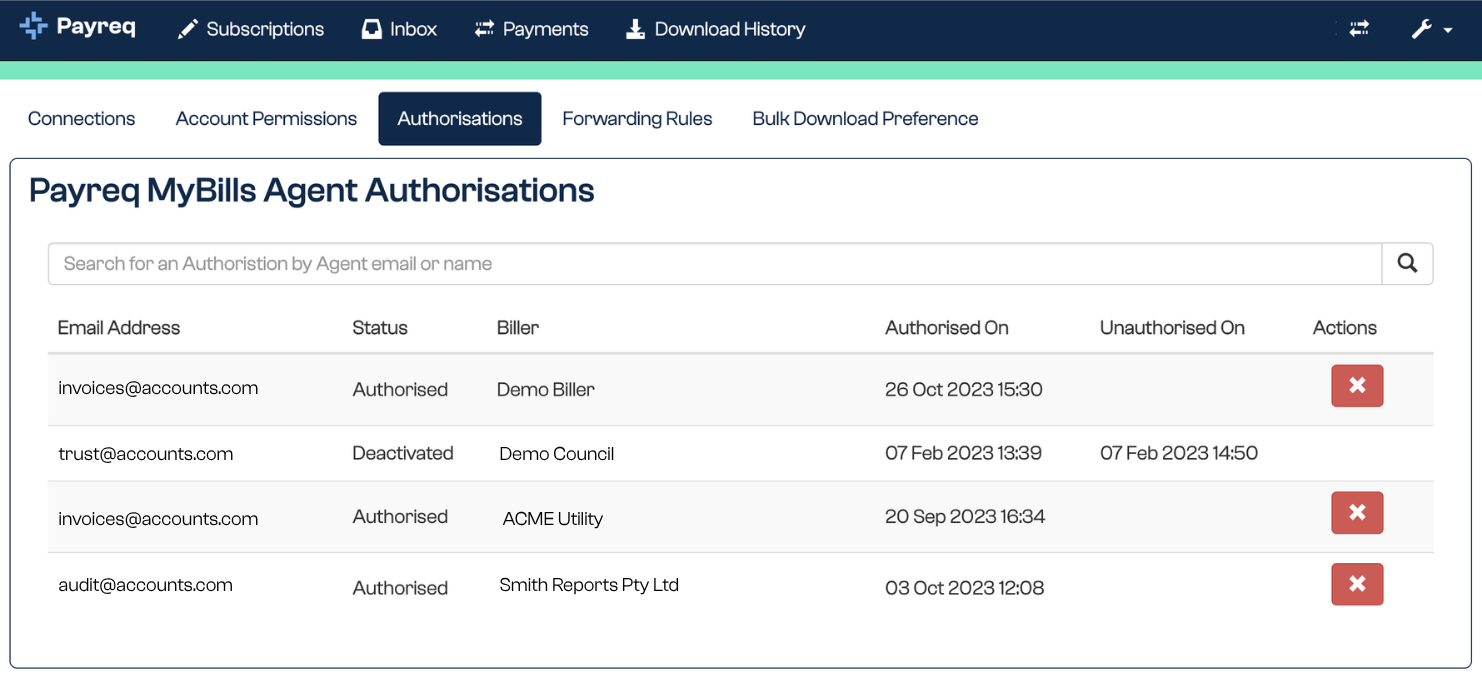
- Select the Authorisations tab.
The page is headed Payreq MyBills Agent Authorisations, which uses the older name for Payreq Group. Each authorisation shows:
- Email Address: the email address of the person who accepted the request;
- Status: Authorised while it is current, or Deactivated once it has ended;
- Biller: the organisation you authorised; and
- Authorised On and Unauthorised On: when it started and, if it has ended, when it ended.
Cancelling an authorisation
To cancel an authorisation, you need the Incoming Settings Administrator permission. See Adding and removing users.
- Select the red cross in the Actions column beside the authorisation.
- Select OK to confirm.
When you cancel:
- the organisation, and the person who accepted the authorisation, are both notified;
- your existing subscriptions with that organisation are not removed. You manage them yourself again, and the organisation's record updates no longer add or remove them automatically;
- you can subscribe properties to that organisation's service yourself again; and
- the authorisation stays in the list with the status Deactivated.
You cannot reinstate a cancelled authorisation yourself. If you need it again, the organisation has to send you a new request.
Whether or not an authorisation is in place, keep telling the organisation when you take on or stop managing a property.
Who to contact
Contact the organisation for:
- adding a property, or asking why one has not appeared;
- stopping documents for a property you no longer manage; and
- a new authorisation request, if you cancelled one and need it again.
Only the organisation can change its records. Payreq Support cannot add or remove a property on the organisation's behalf.
For help signing in or using your Mailbox, see Where to find help.
Related guides
Was this article helpful?
That’s Great!
Thank you for your feedback
Sorry! We couldn't be helpful
Thank you for your feedback
Feedback sent
We appreciate your effort and will try to fix the article