Payreq Group can prepare many documents as a single download, so you do not have to open them one at a time.
Find the documents that have just arrived
The Dashboard may show a New bills received from or New letters received from panel for an issuing organisation. Select its Download button to work with those new documents.
- Sign in and select the correct Payreq Group account.
- Open the Inbox and expand Advanced search if you need to see new documents across organisations.
- Set Download Status to Awaiting Download.
- Narrow the results further by date, document type or the general Search field if required.
The notification email tells you that documents are waiting, but the Dashboard and Inbox identify which ones they are.
Download them
- With the results filtered to the documents you want, select Download as....
- Choose CSV, Merged PDF, Individual PDF or Grouped 10MB PDFs.
- Choose All pages or First page of each document, and whether Payreq should email you when the download is complete.
- Select Download.
- Wait while Payreq prepares the file, and refresh the progress page if prompted.
- When the download button becomes active, select it and save the file.
Available formats may include a CSV of document data, a merged PDF, a ZIP containing individual PDFs, or PDFs grouped to a size suitable for emailing. Choose the format your property management or accounting software accepts.
Have documents sent to you automatically
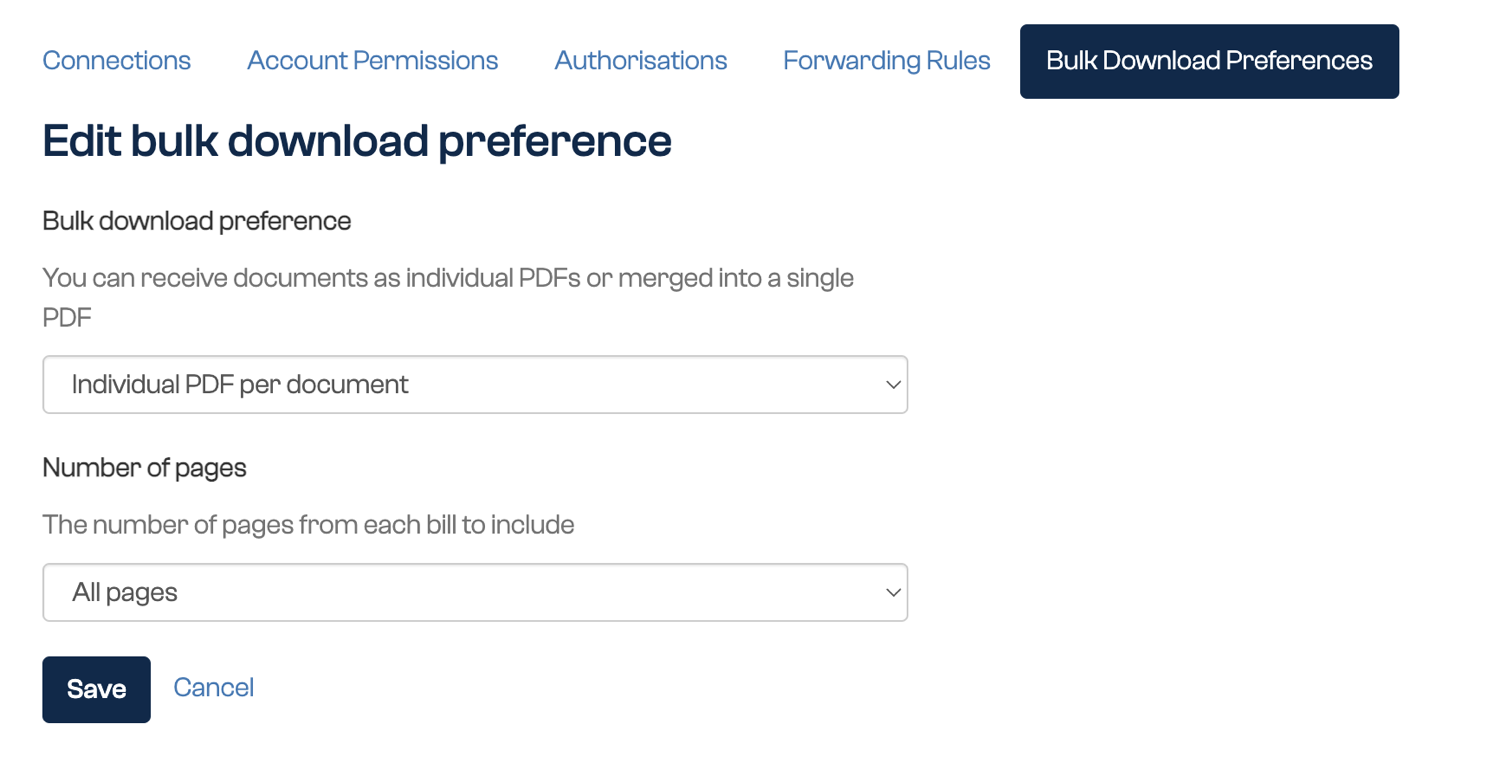
Set a Bulk download preference to tell Payreq how to package recently arrived documents. Payreq emails you when the prepared download is ready. There is no frequency setting in the current form.
- Open the spanner menu, then Account settings.
- Open the Bulk Download Preferences tab.
- Select Edit, or Get started if no preference has been set.
- Choose Individual PDF per document, the merged PDF option or the option that disables the feature.
- Choose All pages or First page only.
- Select Save.
This is worth setting up if you receive documents regularly. It removes the step most often missed: someone has to remember to sign in, and on a quarterly billing cycle that is easy to overlook until notices are overdue.
This is a standing setting and is not the same as the Email me when the download is complete tick box, which applies only to the single download you are preparing at the time.
Collecting a download later
You do not have to wait on the page while a download is prepared. A prepared download can also be collected from the Download History tab, and Payreq emails you when it is ready.
If you downloaded a ZIP file
Extract the ZIP before opening the PDFs inside it. In Windows File Explorer, right-click the ZIP and select Extract All. Extracting first also avoids errors caused by long file paths.
Check the extracted files and totals before importing or processing them.
Related guides
Was this article helpful?
That’s Great!
Thank you for your feedback
Sorry! We couldn't be helpful
Thank you for your feedback
Feedback sent
We appreciate your effort and will try to fix the article