Payreq calls multi-factor authentication 2-Step Verification. It adds a verification step to sign-in, in addition to your password. You can set it up or change your verification method while you’re signed in.
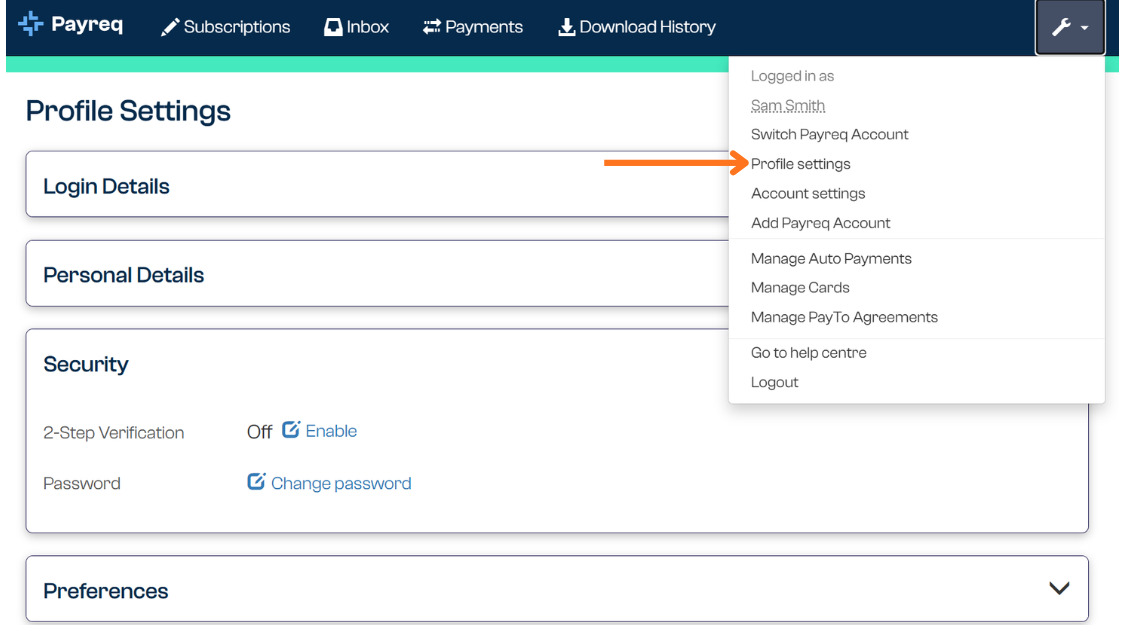
Set up or change 2-Step Verification
- Open Profile settings and go to Security.
- Find 2-Step Verification. Select Enable to set it up or Update to change your current setting.
- Choose one of the verification methods Payreq shows and follow the steps below.
- Return to Profile settings and check that 2-Step Verification shows the method you selected.
Email verification code. If this option is available, select Email verification code, then Save. When Payreq asks you for a code at sign-in, follow the instructions in the email.
Authenticator app. Select Authenticator app, then Next. Scan the QR code with your authenticator app or enter the setup key in the app. Enter the current code in First Code, wait for the app to generate the next code, then enter it in Second Code. Select Save.
If you’re having trouble signing in
- The authenticator code doesn’t work. Use the code from the app linked to your Payreq login. Check that your device is set to update its date and time automatically. If the code is about to expire, wait for the next one.
- You’re waiting for an email code. The sign-in screen may say Verify device. Check your junk or spam folder and follow the expiry instructions in the email. If Resend verification email is available, you can use it to request another code.
- You’ve lost access to your verification method, or Payreq says your login is locked. Contact Payreq Support before trying again. Keep your password, verification codes and authenticator setup key private. Contacting Payreq Support
Was this article helpful?
That’s Great!
Thank you for your feedback
Sorry! We couldn't be helpful
Thank you for your feedback
Feedback sent
We appreciate your effort and will try to fix the article