Payreq can forward supported invoices to a connected Reckon Accounts Hosted company file. An authorised Reckon administrator should complete the setup.
Prepare the company file
Follow Reckon's official Authentication - Hosted API guide. Use the sections Finding the Location of the File in the Accounts Hosted Platform and Setting up the User to be used via Hosted API.
For the Payreq connection:
- sign in to the company file as an administrator;
- record the full company-file location;
- create a dedicated company-file user named Payreq;
- give that user a password and the Full Access role;
- keep the user name and password exactly as entered because they are case-sensitive;
- do not use the Payreq API user to sign in to the company file for normal work;
- switch the company file to multi-user mode; and
- close the company file and log off before connecting Payreq.
Reckon maintains the detailed instructions and screenshots for these steps. Payreq does not reproduce them here.
Connect Payreq
- Sign in to Payreq and open Account settings, then Connections.
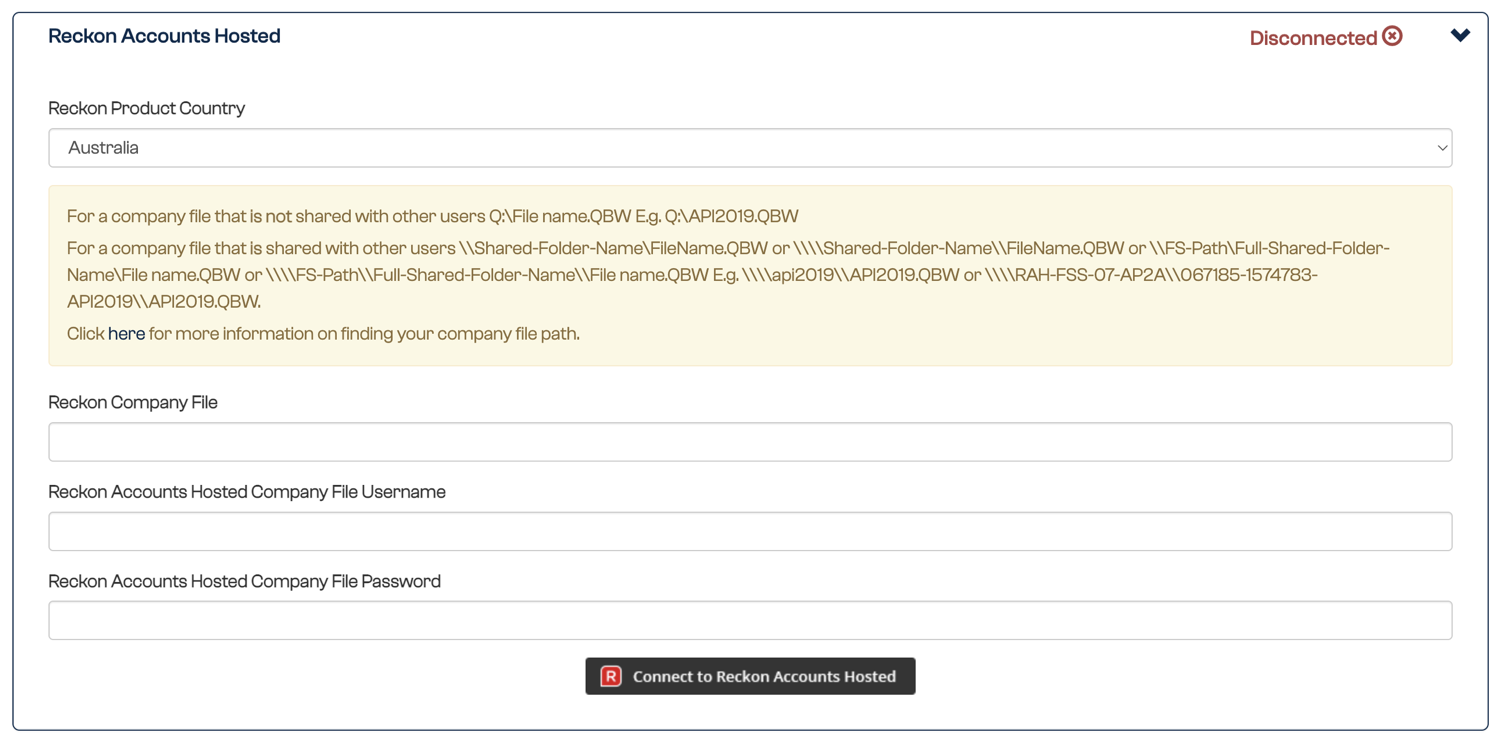
- Open Reckon Accounts Hosted and enter the country, full company-file location and dedicated Payreq API-user details.
- Select Connect to Reckon Accounts Hosted.
- Sign in to Reckon Accounts Hosted with an authorised user and approve the requested access.
- Return to Payreq and confirm that the connection is marked Connected.
Subscribe for invoices
- Open Subscriptions and select Subscribe.
- Search for and select the organisation that sends the invoices.
- Select Reckon Accounts Hosted as the delivery method.
- Enter the verification details exactly as they appear on your current invoice.
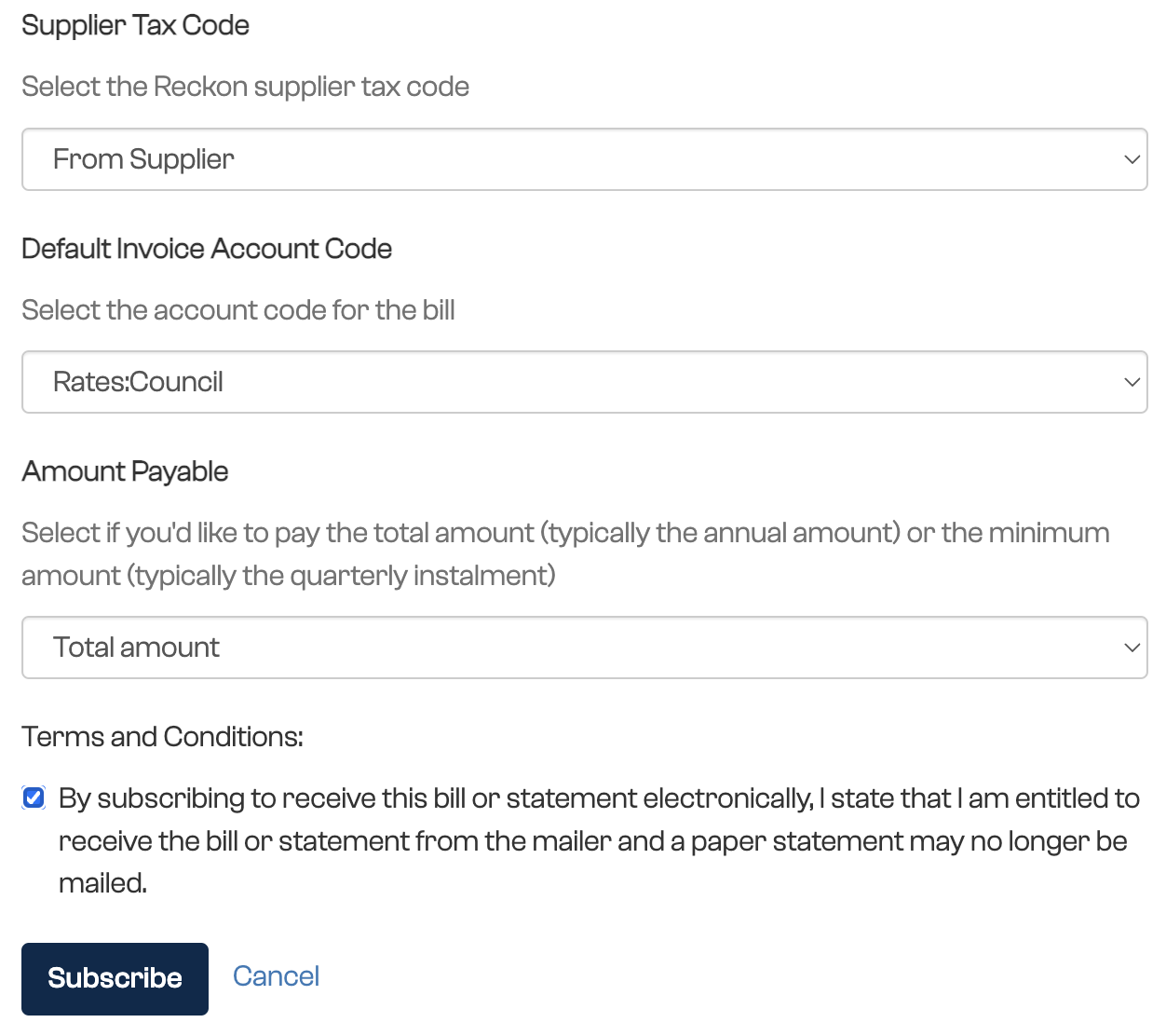
- Choose the supplier, supplier tax code, default invoice account code and amount payable options shown.
- Accept the terms and conditions, then submit the subscription.

Once the issuing organisation approves the subscription, review each forwarded invoice in Reckon before approving or paying it.
Each additional Reckon company file needs a separate Payreq Mailbox.
Was this article helpful?
That’s Great!
Thank you for your feedback
Sorry! We couldn't be helpful
Thank you for your feedback
Feedback sent
We appreciate your effort and will try to fix the article