You can download a single bill or document from its preview. You can also prepare a download containing the documents shown in your Inbox search results.
Find the documents you need
- Go to go.payreq.com and sign in.
- Open the Inbox.
- Use Search or Advanced search to find the documents you want. If you are preparing a download containing several documents, make sure the results include only the documents you need.
Download one document
- Open the bill or document.
- In the preview panel, select Download.
- Save the PDF to your device when prompted.
Download several documents
- Apply search filters so the results contain the documents you want to download.
- Select Download as... above the results.
- Choose a format:
- Merged PDF combines the selected documents into one PDF.
- Individual PDF keeps the documents separate. Payreq may prepare them in a ZIP file.
- A Payreq Group Mailbox may also offer CSV and Grouped 10MB PDFs. See Downloading documents in bulk for that workflow.
- Choose All pages or First page of each document.
- Choose whether Payreq should email you when the download is complete.
- Select Download to start preparing the file.
Payreq displays the download progress. Select Refresh to check the current status.
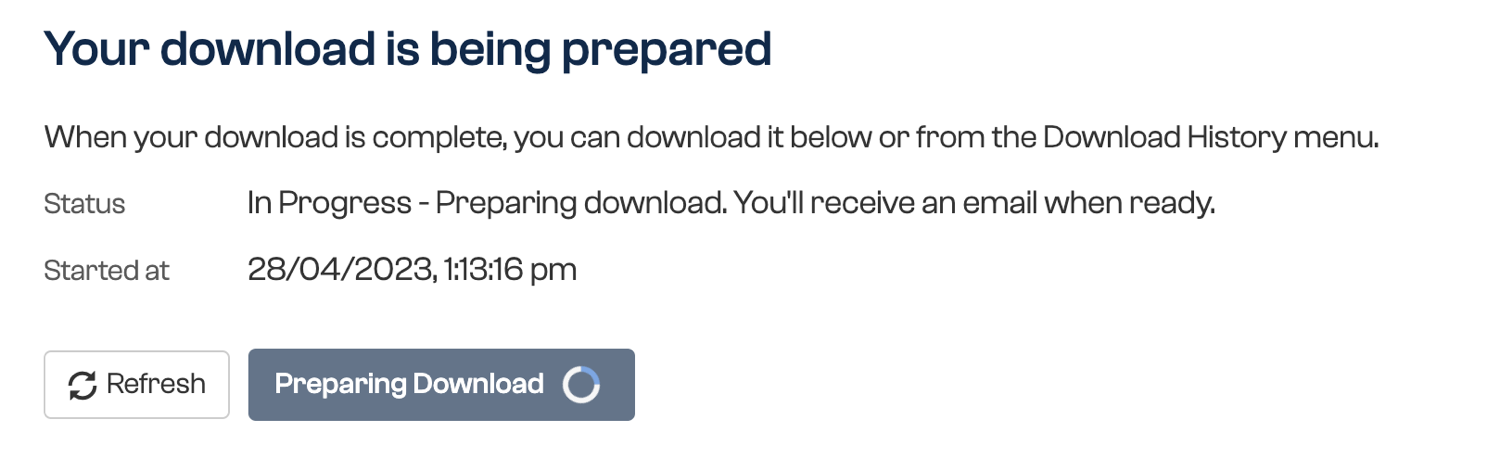
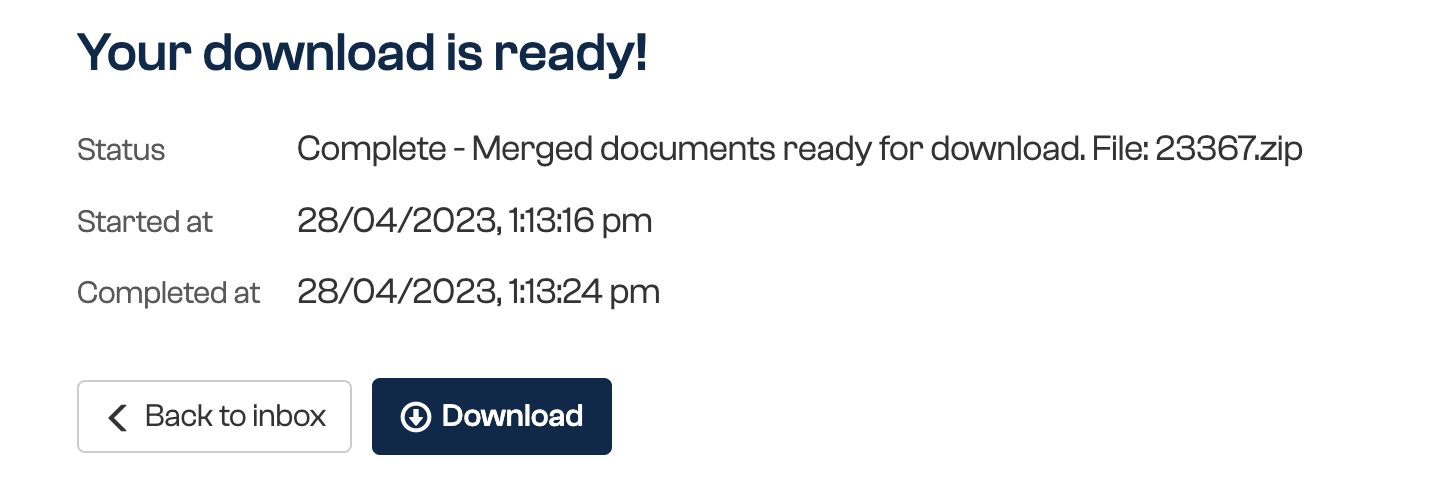
When the file is ready, select Download. You can also retrieve a completed file from Download History.
If the file cannot be prepared or downloaded, see Troubleshooting document downloads.
Was this article helpful?
That’s Great!
Thank you for your feedback
Sorry! We couldn't be helpful
Thank you for your feedback
Feedback sent
We appreciate your effort and will try to fix the article