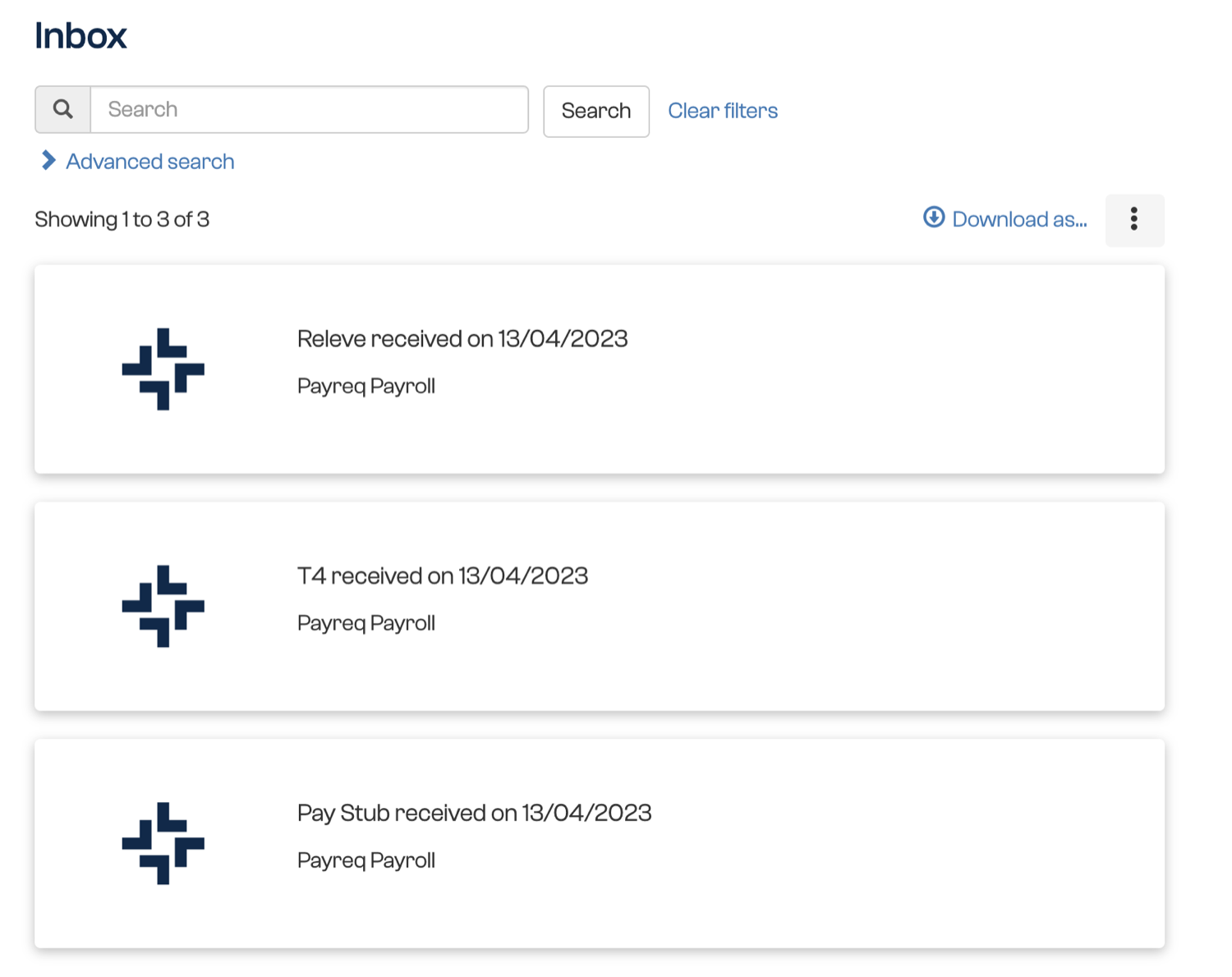
Once your subscription to your employer is active, pay statements supplied through Payreq appear in your Inbox.
View a pay statement
- Sign in at go.payreq.com.
- Open the Inbox.
- Browse the list or use the available filters to find the pay period you need.
- Select the relevant payroll item to open it.
Download a copy
- Open the pay statement.
- Select Download.
- Save the PDF to your device.

On a computer, the file is normally saved in your Downloads folder. On a phone or tablet, look in the device's Files or Documents app.
If the statement does not appear, check that you subscribed to the correct employer service and entered your details exactly as shown on a recent pay statement. Contact your employer's payroll or HR team if Payreq has not received the document.
Was this article helpful?
That’s Great!
Thank you for your feedback
Sorry! We couldn't be helpful
Thank you for your feedback
Feedback sent
We appreciate your effort and will try to fix the article